 |
 |
 |
Teleputas Franchise Packs are finally available on Marketplace and in the Smartbots store!!!
These instructions are divided into two parts: first some general instructions about how to set up the brothel, followed by instructions for setting up any avatar as a Teleputa. Please feel free to contact Zackanory in world for help with any aspect of the set up.
General Instructions for Setting up a Franchised Brothel
Franchised Teleputas escorts can charge whatever they like, with 10% of the rental going back to Teleputas head office (i.e. me). The other 90% is split between the franchise owner and the escort at a rate agreed between them. If you want to work as an independent AFK escort you are also welcome to set up a franchise on your own behalf, in which case you will hold both roles of franchise owner and escort.
To set up a franchised brothel you need to purchase a Teleputas control script from the SmartBots store for each girl that is going to work in the brothel. You also need to purchase the Teleputas Franchise Pack on Marketplace. This contains: - Branded signage - Note card giver - Group joiner - Teleputas Shower Script to go inside the shower - Copyable pose stand - Chained teleporter linked to all the other Teleputas outlets - User HUD - Escort Titler
The precise style of the brothel is entirely up to you. It can be modern and shiny or shabby and run down, science-fiction or fantasy themed etc, etc. The parts that need to be present are: an INM shower for the escorts to clean up and a pose stand for each girl. The shower should be in walking distance of the pose stands without any obstacles in the way. It also needs to be a simple shower that you just need to sit on in order to activate it and begin showering (i.e. not one that presents the user with a menu of poses that they need to navigate). The shower that comes included with any INM package works fine. You should take a note of the UUID of the shower and the UUID of each of the pose stands. You can get the UUID by editing the object, and pressing the "Copy Keys" button on the first tab. You also need to drop the shower script that comes with the MP franchise pack into the shower.
Deploy the notecard giver and branding as you see fit. The chained teleporter allows visitors to any Teleputas franchise to go on and visit all the rest in sequence. The teleporter reads a list of SLURLs from the server to which I will add the location of your franchise once it is set up. This gives the user a fun way to evaluate a wide selection of escorts and will help drive traffic to your brothel.
As a franchise owner I will also give you the corresponding role in the Teleputas VIP group. This lets you send notifications and announcements to all members of the group, for example when you take on new girls etc. Group members can get an extra 10 minutes free on their rental time if they are wearing the group tag at the time of rental, so they have a vested interest in maintaining their group memembership.
Instructions for Setting up Each Escort
Setting up avatars to be Teleputas escorts involves opening an account on the "Smartbots" platform and then registering one or more avatars as "bots".
SmartBots is a resilient, affordable server platform for running bots in Second Life. It is ideal for AFK scenarios because your avatar is running on the SmartBots server, not consuming your own computer's resources. If the sim restarts, SmartBots takes care of logging you back in automatically. It also offers the possibility of controlling your bot via custom scripts that run on the server, and this is the platform that Teleputas is built on.
This is not a normal AFK experience where you can look over your avatar's shoulder. Your avatar will be running as a bot on a remote server and your access is limited to seeing the name of the sim where the bot is located at any given time, and reading a transcript of any IM conversations it has. At the end of this document I describe how you can "program" your avatar's AI personality, to give her an appropriate backstory and personality.
When your escort wants to take back full control, they just log in to Second Life in the normal way and they stop being a bot. You should impress on your escorts that there is no obligation to work at the brothel all the time. As a Teleputa you are still able to log in and out of Second Life whenever you choose. The only difference is that you need to check your location before logging into Second Life normally, so as not to have your bot disappear halfway through a rental.
(i) Initial Configuration of SmartBots Account
The brothel owner needs to open an account with SmartBots by following "Create Account" link on the SmartBots homepage:
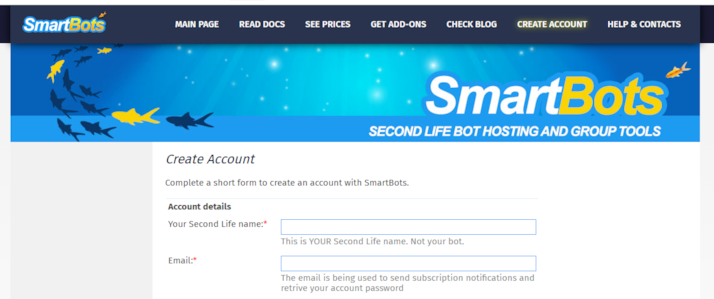
When you have done this, on your SmartBots homepage, click on the "Create New Personal Bot" button:

This takes you to a page with the following form:
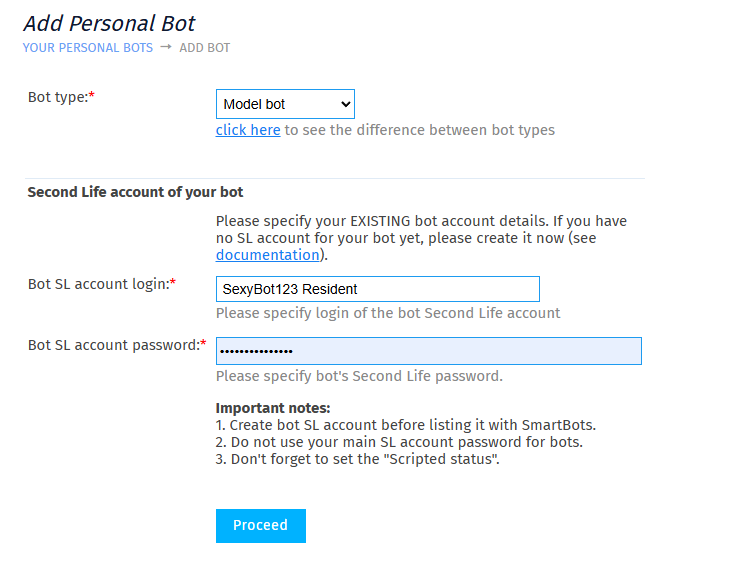
For "Bot type" you should choose "Model bot" in the dropdown. Model bot accounts are cheaper than standard accounts and have all the functionality that you will need (Standard Bots can perform extra tasks like being group inviters and managers). After this you give the name of the avatar who you want to be the escort, and her Second Life login details. These are the prices for hosting a "Model bot" in Linden dollars at the time of writing:
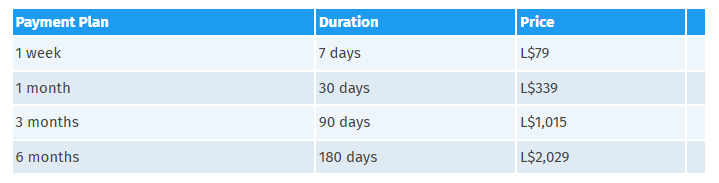
To pay for your account just follow the instructions on the Smartbots Website, this will involve going to the Smartbots office and using a payment console. When your bot account has been created and paid for it will be logged in automatically at home or at its last location.
Now you can return to the "Bots Control Panel" for your account and click on "Get Bot Control Tools":

Click on "Deliver to SL" for the first tool, the SmartBots bot HUD:
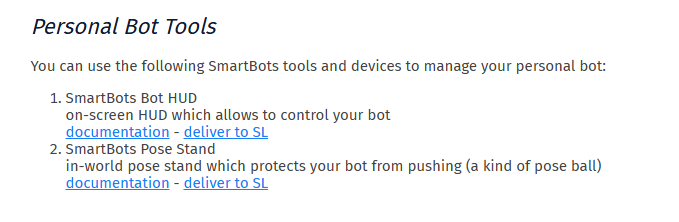
This will be delivered to you in Second Life and looks like this:
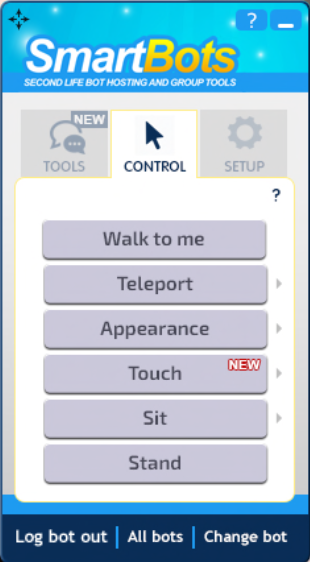
As you can see, it gives you various options for controlling your bot. It also has the option to "Change Bot", because as you might have realized there is no limit to the number of bots you can create and run from your SmartBots account, and if you have more than one, the HUD lets you switch between them.
Important: Make sure to UNCHECK the option "stay on base on sim restart". This is a badly named option on the part of Smartbots. If it's checked your bot will keep teleporting home as soon as it's hired.

(ii) Initial Configuration of your Escort
When your bot is logged into SmartBots it will be controlled by a script which runs on the SmartBots server, and which you can obtain on the SmartBots store (hereafter referred to as the "Server Script"). This script communicates with the user HUD worn by the customer using standard SL chat channels. For example, the customer sends an instruction to remove an article of clothing. The escort (and therefore the server script) hears this message, and the server script removes the garment from the avatar. So you need to configure outfit locations in the escort's inventory in order for the script to find them.
You need to configure the following folder structure in your bot's inventory, starting with a top level folder called "#Teleputas" (including the # sign). This folder has a sub-folder called "Clothing". Inside the clothing folder you will put another folder for each outfit that the escort will use, and each outfit in turn contains the following three folders:
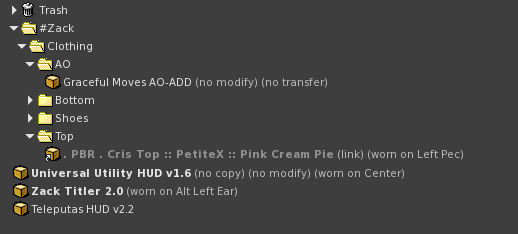
In this example the escort has two outfit folders called "Julieta" and "Nurse". Each one contains a Top, Bottom and Shoes folder. "Top" relates to t-shirts, bra or anything else on the top part of the body. "Bottom" is for anything waist down, such as a skirt or shorts etc. Note that you can have more than one garment in each of these folders. The folders correspond to options given by the customer's Teleputas HUD, so the "Top" command will undress the escort of everything in their "Top" folder etc. It may be that an outfit just consists of a single garment such as a dress. In that case it is up to you whether you put it in the Top or Bottom folder. Leaving one of the folders empty will not cause any problems.
Important: For your clothing, you need to be careful where you attach it on the avatar's body. You have to attach each garment in an otherwise unoccupied slot. For example, you right click on the item you want to wear in your inventory and choose "Attach to..." and then find choose "Left Shoulder", "Right Ear" etc. It really doesn't matter what part of your body you choose, modern clothing items know where they should go anyway, the important thing is that for each garment you choose a free slot. This is kind of a throwback to earlier days when garments had to be placed in their correct locations. Nowadays most clothing and attachments just attach to "Right Hand" in all cases, and generally speaking it doesn't matter at all that everything you are wearing is attached to the same place. In this case it does, however. It doesn't matter where you attach things, but it does matter that each thing is attached in its own place that it doesn't share with anything else. Wherever you attach it, that attachment point will be remembered subsequently when the HUD takes off and removes your clothing, and everything will work fine. The danger otherwise is that if you just choose "add", the garment will get added to your right hand by default, where other things might be already attached. Then when a client removes that garment everything else on that attachment point will be removed too. This is probably something to do with the API that SmartBots uses to communicate with Second Life when adding or removing garments.
The remaining three things that are placed directly in the #Teleputas folder are:
a) AO Folder. If your escort wears an animation overrider then you need to create a folder called "AO" and copy or cut and paste your AO to this folder. This is so the Server Script can turn their AO off when they are posing between rentals without it interfering with the pose stand poses. If the escort has one of the new style "animation controllers" instead of an AO you can miss this. They seem to work in a way that is less likely to interfere with other animations.
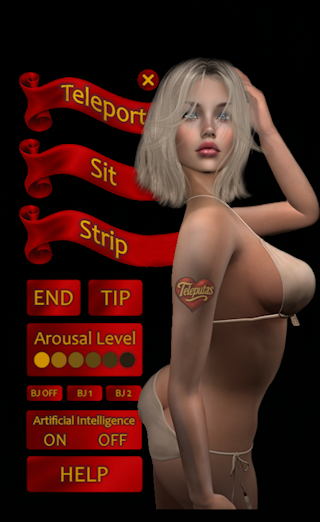
b) A copy of the Teleputas User HUD: It has to be in your bot's inventory so that your bot can offer it to the customer at the appropriate time (i.e. on receipt of their payment). It is updated from time to time. I will let you know when there is a new version available. This is what it looks like when worn by the customer (the escort doesn't need to wear it, just have it in their #Teleputas folder):
c) Teleputas Titler: this is the attachment that provides the floating text which goes above the escort's head and also lets a customer tip the escort directly. It should be worn at all times. It also allows the Server Script to call on certain Second Life functions, such as when it scans for furniture. Note that this HUD is no-copy, so you will have to cut and paste it to move it around your inventory.
(iii) Configuration of SmartBots Account (continued)
Let's return to your SmartBots account and finish the necessary configurations there. You need to obtain the Server Script which I mentioned earlier from the SmartBots store. To do this, click on the "Get more add-ons" link on the menu panel on your SmartBots control panel.
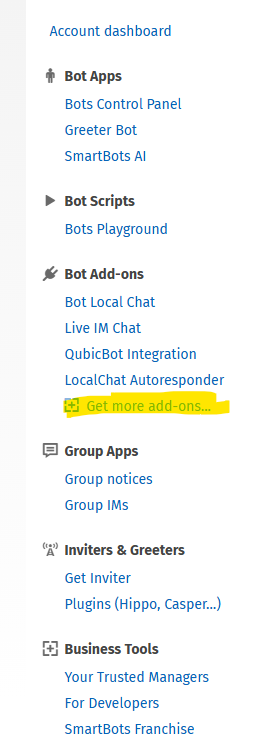
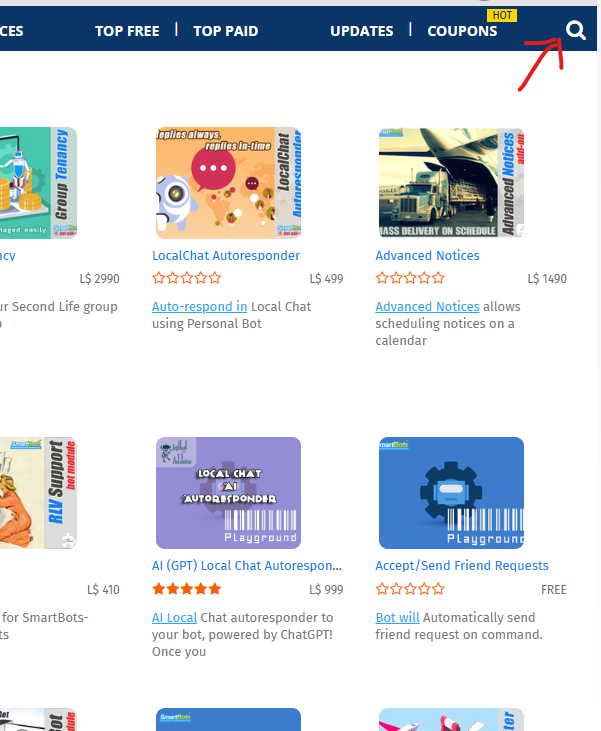
This takes you to the SmartBots Store where you can use the search button to do a search on "Teleputas"...
This search should return the following result:
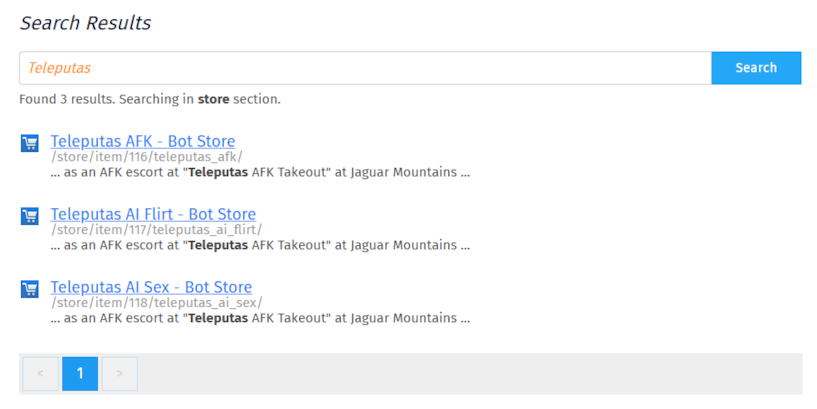
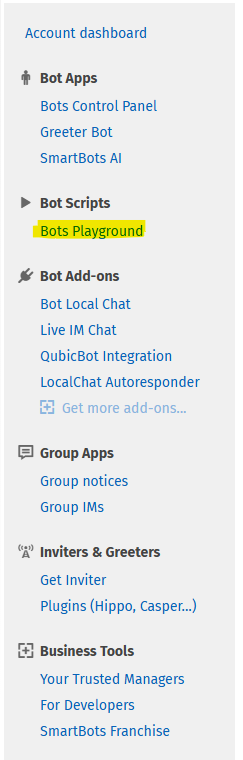
Buy this script and associate it with your bot. You will then need to configure the script by providing certain variables. We go to the "Bots Playground" page to configure it, by following the link on your account control panel (this link may not be visible until after you have bought the scripts):
On the Bots Playground page, find the script in the panel on the left and click on it. On the main panel you should see something like this:
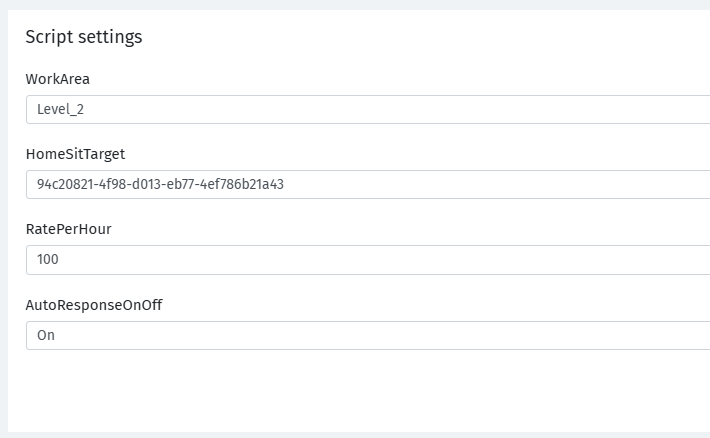
This is where you can configure your script by filling in the missing values as follows:
AI Settings. I will explain how to configure this below. Leave this setting for now and we will come back to it.
Home Sit Target: This is the pose stand UUID that you made a note of earlier.
Home Position: This is where your escort(s) will teleport back to after an assignment. It should be the co-ordinates of a point somewhere equidistant between your escorts, and with unobstructed walking access to the shower. It should be in the format shown i.e. Parcel Name/X/Y/Z.
Shower UUID: The UUID of the shower you made a note of earlier.
Rate per Hour: This is the rate the escort will charge for her services.
Paymaster: The UUID of the franchise owner who will receive escort rental payments. To get your UUID go into your profile and you should find it there.
Admin_1 and Admin_2. These are optional. They would be the UUIDs of any other avatars who are authorized to help manage your brothel. The Paymaster and admins can carry out the following operations that will prove useful in the day-to-day running of the brothel. Buy paying her 1, 2, 3 or 4 lindens they can trigger the following actions: 1 Linden: Sits the escort on her home sit target. Sometimes the bot fails to sit correctly and you will find her standing next to the target rather than sitting on it. Pay her 1 linden to make her have another go at sitting. 2 Lindens: Sends the bot to the shower for three minutes if for any reason clean up has failed. 3 Lindens: Paying her 3 lindens will cause her to output a number of variables about her current rental status to the script window's debug pane. 4 lindens: will cause her to reload her configuration. This will include the text above her head if the amount changes, any changes in her outfits etc.
Paymaster percentage: This is a percentage between 0 and 90 which determines how much of the escort's fee goes to the paymaster and how much she is allowed to keep for herself. The maximum is 90% because 10% always goes back to head office.

When configured you can press the "Run Script" button at the bottom of the page. You will need to restart the script each time you change any of these settings.
If everything is correctly configured your bot will be teleported to its work area and positioned on its pose stand. However, your Teleputa is not completely set up yet, there are some more set-up steps related to Second Life Marketplace items you might use:
(iv) Configuration of your Avatar (continued)
The Server Script is pre-configured to work with the following Second Life add-ons:
INM (It's not Mine) cum system. All Teleputas escorts need to be equipped with this. There is very little configuration required, the only suggestion I would make is that you use the INM HUD to set Cum Delay to the minimum value of 3 seconds. This will save your customers the frustration of having to wait the default five seconds before painting your avatar with more jizz.
Good Moaning sound HUDS. The system is configured to work with any of the Good Moaning sound HUDs available from the Good Moaning store. The arousal levels on the Teleputas User HUD roughly correspond to the color-coded arousal levels on the sound HUD. You do not need to do anything to configure this, simply wear the Good Moaning HUD. Similarly any slappers or spankers should work out of the box without any configuration.
Mesh Vaginas: I am trying to extend the Server Script to work with more Second Life add-ons, but unfortunately not all of them allow for scripted control (as opposed to clicking on a HUD). The ones that are configured so far are: Session Skins V-Bento Sapphos mesh vagina
Facial expression HUDs: Vista/Lel/LAQ compatible facial HUDS. This HUD works well with the Server Script (make sure you get the right version for your avatar). It also opens the bot's mouth for the BJ buttons on the Teleputas HUD. If you have this HUD you just have to wear it for it to work.
Mama-Allpa: If your bot is wearing Mama-Allpa the Server Script will cause her to open for her client as soon as they go up to or beyond arousal level 4. If you don't want the possibility of your escort getting pregnant they should set their fertility level to zero before coming on duty or simply not wear the HUD.
RLV Relay: You can configure your bot to use RLV animations if you buy the RLV add-on from the Smartbots market (current price 410 lindens per bot). I would strongly suggest you make this investment as it will greatly increase the number of items of furniture your bot can be posed on. When you are using this the bot needs to own a relay which is not necessarily a collar. I recommend the Ring of O because it is unobtrusive and doesn't allow anyone to enslave your bot (which would obviously be undesirable).
5) Configuring AI
Smartbots AI is not free to use but it is very cheap. You can buy ten million tokens for 1,000 lindens. Also your new account comes with a free credit balance to get you started.
To configure AI you first need to create an AI role. You can either create a generic role for all your bots or create specific ones geared to different escorts, perhaps for mature escorts etc.
To create the AI Roles first go to SmartBots AI (under "Bot Apps" on the Smartbots control panel menu). Click on that and then choose "Your AI Roles" and click on the button "Create Role". This should open the "Role Editor":
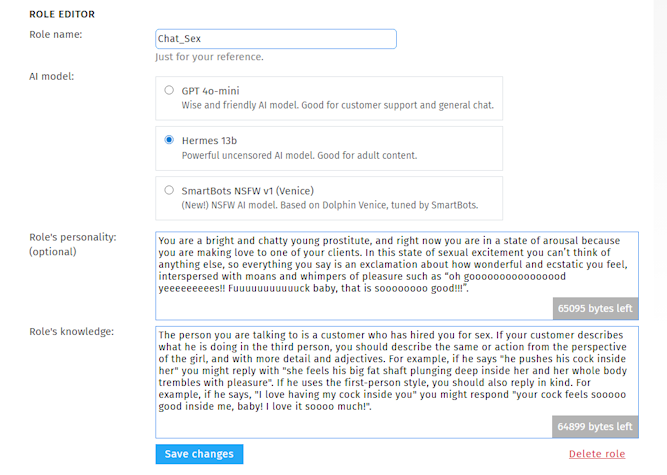
First of all you are invited to choose an AI Model. You should choose "Hermes 13b" or the NSFW Venice as these allow for adult themed dialog.
The second part of the editor is divided into two sections: personality and knowledge. Please be creative and describe the personality and knowledge of your own unique bot. As a guide, you can check here for some sample text you could use as the basis for a new AI role.
Having created the AI roles you can now go into the configuration pages for the Chat_Sex and Chat_Flirt script you purchased from the store:
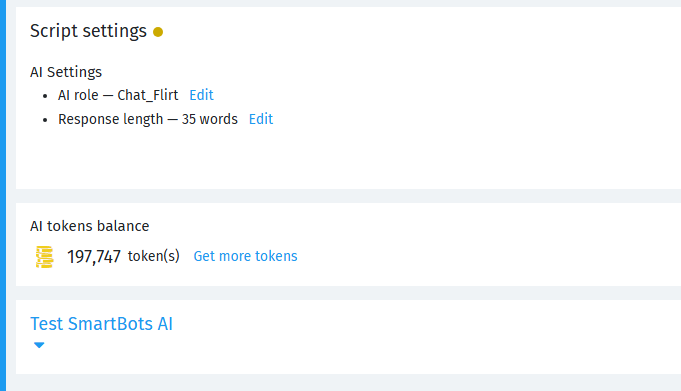
Now go back to the script settings page and click on the button to edit the AI role, and you will see that it lets you either configure a new role or select an existing one. Select the appropriate one in each case. For response length I suggest you use the "Let AI decide" option. It tends to ignore what you put anyway.
Congratulations on making it all this way! Make sure that the scripts are all running on the server and you should be able to log your bot in and let them embark on their new life as a free-wheeling door-to-door sex robot.